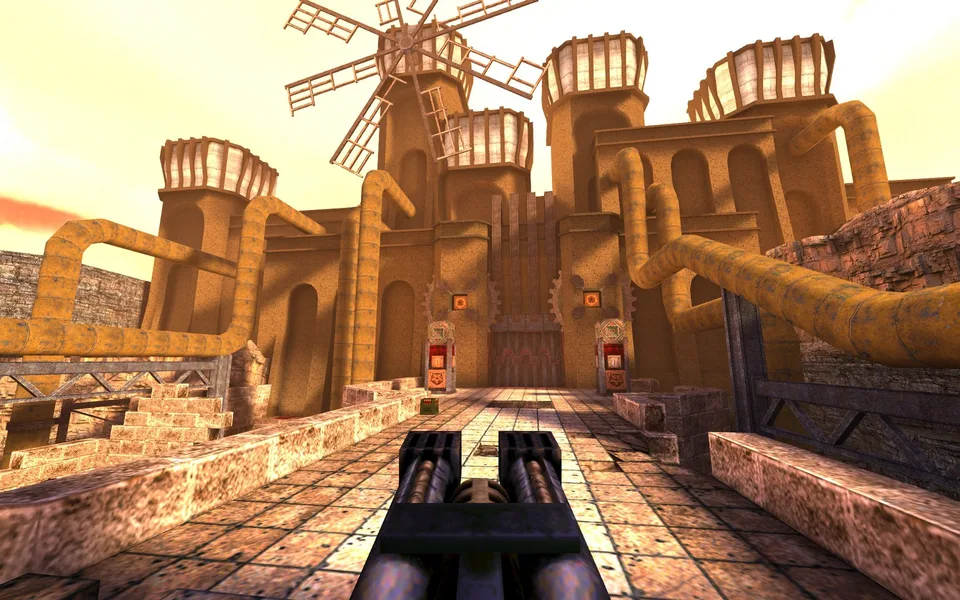
For the Quake 1 entry in the Radiant Optimizer list, start at q1.pieter.com. Its landing page identifies it as an unofficial QuakeWorld multiplayer project. The Quake II and Quake III entries are separate destinations.
Open QuakeWorld project ↗Open the right Quake project
The source list uses the short label “Quake 1.” The linked q1.pieter.com project describes a QuakeWorld multiplayer experience, with a player-name field and a Play button. The creator advertises up to eight players and identifies the work as a non-commercial preservation project. Those are the project’s published claims; we have not verified a full multiplayer session.
This distinction matters when you are trying to join a friend. Send the exact project address, not just “Quake browser.” A QuakeWorld page, a DOS version and a Quake III arena client can all carry the Quake name while having different controls, servers and game modes.
- Open the linked project in a regular browser tab.
- Read the current start screen. If the page still offers the player-name field, choose a nickname that does not reveal personal details.
- Use the project’s Play button and let the initial load finish.
- Read any controls or connection instructions shown by the game before joining a match.
Get mouse and keyboard working first
Start on a computer with a keyboard and mouse. Being able to open a page on a phone does not establish that the game has touch controls. If you want to use a controller, look for support in that particular project rather than assuming the browser will translate the controls.
First-person browser games often capture the mouse pointer after a click inside the game. Click the actual game area, then try turning. If the pointer still moves across the desktop, check for a permission prompt or an in-game instruction. Press Escape to release a captured pointer; click back into the game when you are ready to resume.
Do not change several settings at once. Get movement and looking around working in a window before using full screen. Then adjust sensitivity in the project’s settings if it provides that option. A very high sensitivity can feel like lag or erratic aiming even when the game is rendering normally.
Quake 1, Quake II and Quake III are separate links
The original post also links to q2.pieter.com and q3.pieter.com. We preserve those entries in the full list, but a feature on one page does not establish the same feature on another. Check each project’s own file, mode and server requirements.
If a friend sends a server or lobby instruction, ask which of these projects it belongs to before trying it. Keep the full address in your bookmark. Changing a number in the hostname to find a different game is not a substitute for checking a source link.
The QuakeWorld landing page also links to a separate classic DOS version. Choose that path only if the older experience is what you want; it should not be described as the same multiplayer session.
If Play does not lead to a usable game
Note where the process stops: before the start screen, during a loading message, after a game image appears, or only when connecting to a match. These are different problems. A working menu with a failed online connection does not necessarily mean the graphics engine failed.
- Blank page: reload once, then try a current browser with other heavy tabs closed.
- Game visible, no aiming: check focus and mouse capture before changing graphics settings.
- Slow movement or stutter: reduce the project’s resolution if it offers the setting. Test in a smaller window.
- Only online play fails: check the project’s server information. Do not repeatedly clear storage to solve a server-side problem.
Keep the game name, browser version, device and exact point of failure when reporting a bug. Avoid posting account information or files from a purchased game. Our loading checklist walks through the same diagnosis in more detail.
Sources and next steps
This guide uses the QuakeWorld project’s launch page and the original game list. No game files are hosted here, and no FPS benchmark or full multiplayer playtest is claimed. Return to the full list to compare other projects.
Questions from the source thread
Can I use a controller?
Support depends on the specific Quake project. Check its controls menu; the fact that a browser recognizes a controller does not mean the game maps its buttons. Keyboard and mouse are the clearest starting point for this guide.
Question in the original discussion ↗What frame rate should I expect?
We have no measured FPS result for your device. Browser, graphics hardware, resolution and the selected project all matter. Start with the project’s default settings and adjust one setting at a time.
Question in the original discussion ↗