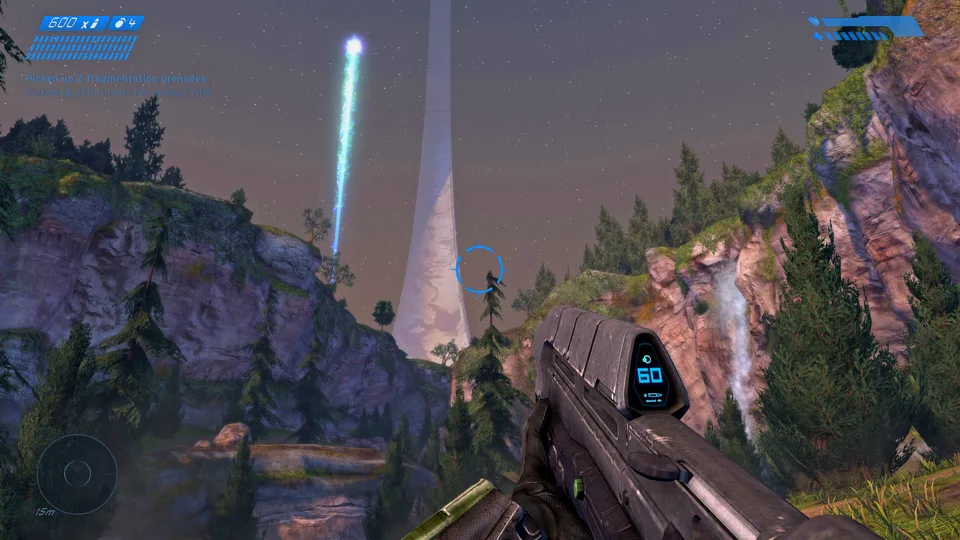
The post contains two Halo entries: mitchellhynes.com/halo/ and HCEMobile. HCEMobile’s current instructions require your own Xbox Halo: Combat Evolved disc image in .iso or .xiso format. It does not include the game data.
Open HCEMobile ↗Two Halo entries, two starting points
People replying to the viral post asked where to find the Halo link. There are two: a Halo CE desktop project and HCEMobile. Start with the exact one you intended to use. This guide focuses on HCEMobile because its public page spells out the starting requirements.
These are community projects, not Microsoft’s official web release of Halo. A link appearing in the same thread does not make their accounts, saved games or multiplayer sessions interchangeable. If a friend is inviting you, confirm the site before following setup instructions.
We have reviewed the published HCEMobile setup instructions. We have not supplied a game image or completed a campaign or multiplayer playtest, so this guide makes no device-specific performance promise.
Prepare your own game data
HCEMobile asks for your own Xbox disc image of Halo: Combat Evolved, using .iso or .xiso. The project says it copies the maps into private browser storage, using up to about 1.8 GB, and processes a locally selected image without uploading it. Follow its current page if the requirements change.
Check that you have the requested edition and file type before you begin. A PC installer, a shortcut or a ZIP archive is not the same thing as the stated Xbox disc image. Changing a file extension does not convert the contents.
Make room on the device and keep the original game image somewhere you control. This site does not supply disc images. If you only have a different edition, look for explicit support in the project’s instructions rather than assuming all Halo releases use compatible data.
Follow the first launch in order
- Open HCEMobile and read its “How to play” instructions.
- Choose the browser option or follow its Home Screen installation instructions. A web app added to a Home Screen is still a different setup from a native console game.
- Use “Choose disc image” for a local file you own, and let the import complete.
- Review the displayed controls and start with a short session to check input and saving.
- Keep the same project address and browser profile when returning.
The project’s local-file path is the clearest starting point for this guide. Do not upload game files to this website or send them by email. If a file-selection dialog does not show your image, check the requested format and where the file is stored.
Set up controls before judging performance
HCEMobile publishes touch, controller, and keyboard-and-mouse options. That is a feature description, not proof that every controller or phone works. Start with the instructions for your device, then verify movement, looking around, firing and menu navigation before playing a longer session.
For a controller, connect it before testing the game’s mapping and use an ordinary button press once the game is open. If some actions work and others do not, check the selected layout. If nothing works, compare with touch or keyboard input to narrow down whether the issue is the game, the connection or the input method.
For touch play, consider how much of the screen the controls cover. If the project offers layout editing, change one element at a time and test it. A layout that feels wrong is not necessarily a loading failure.
Resolution, storage and saves
The project exposes resolution and lower-resolution texture settings. If the game renders but struggles, begin with those built-in settings and a short repeatable test. Increasing resolution adds rendering work; it does not fix a missing file or failed import.
There is no single FPS number we can promise. Phones, integrated graphics, thermal conditions and browsers differ. Record the device and settings alongside any result rather than comparing numbers from unrelated screenshots.
Before removing the app or clearing site data, use the project’s saved-game export if available. Keep an exported copy outside the browser. Moving from a regular tab to another browser or a different device should be treated as a separate setup until you verify that your data is present.
Sources and help
Check HCEMobile’s current instructions for supported data and features. The original “where is the Halo link” request is visible in the source thread. For a blank screen, failed import or missing controls, continue with our loading and input checklist.
Questions from the source thread
Which Halo link was in the post?
The post lists mitchellhynes.com/halo/ for Halo CE and hcemobile.com for Halo CE mobile. They are separate projects. Choose the exact destination and follow its own setup instructions.
Question in the original discussion ↗